Level editor
The Level Editor is a feature that allows you to create and edit levels manually and have a theme applied to them automatically.
Getting started
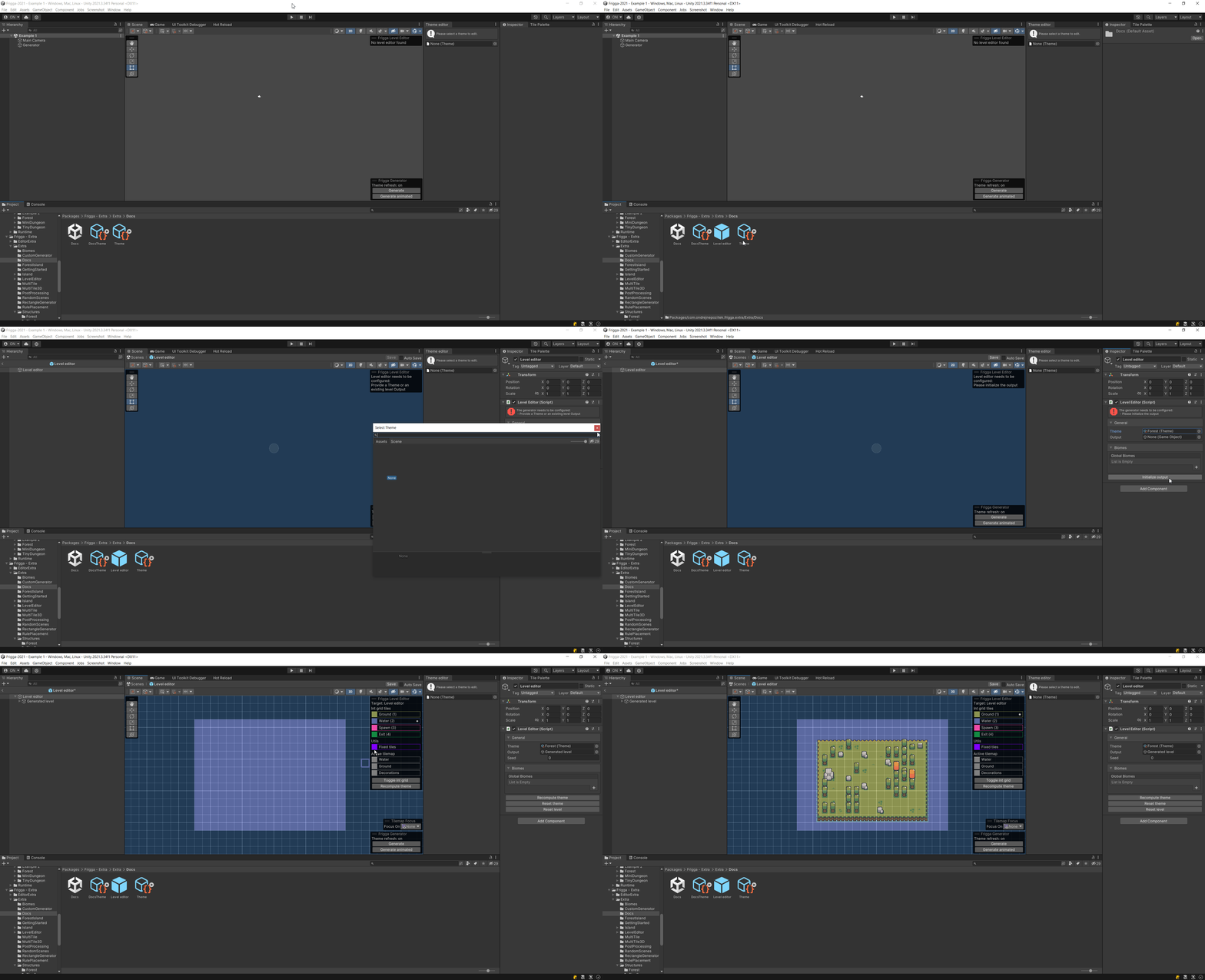
To use the level editor, go to Create -> Frigga -> Level Editor. This will create a level editor prefab that you need to open. Once inside the prefab, make sure you open the "Frigga Level Editor" which is used to control the editor.
When you first open the prefab, examine the "Level Editor" component attached to the root of the prefab. You need to assign a theme to that component and then click the "Initialize Output" button.
Controls
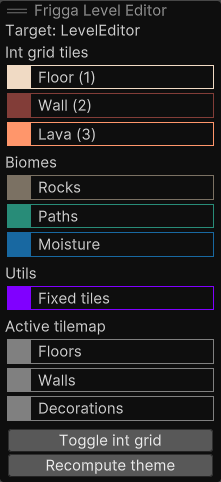
The level editor is controlled via the "Frigga Level Editor" overlay, so make sure you have that open.
Basics
The entire editor is built on top of the Unity tilemap system, so you can use many of the existing shortcuts:
- "B" for painting a tile
- "U" for painting a rectangle
- "Shift + U" for erasing a rectangle
- "D" for deleting a tile
If you're not familiar with the shortcuts, you can always open the "Tile Palette" window and use the buttons there.
Int grid tiles
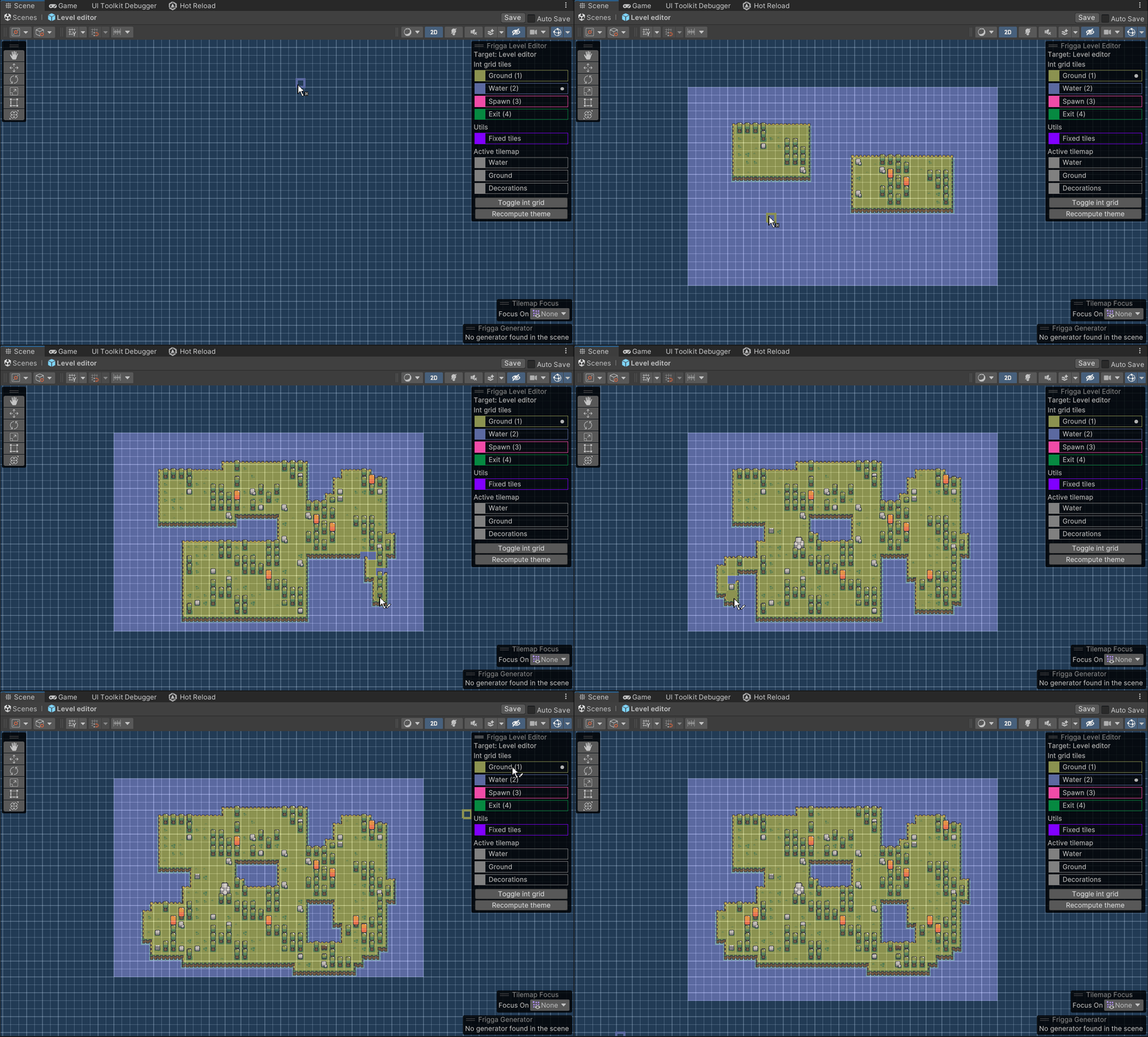
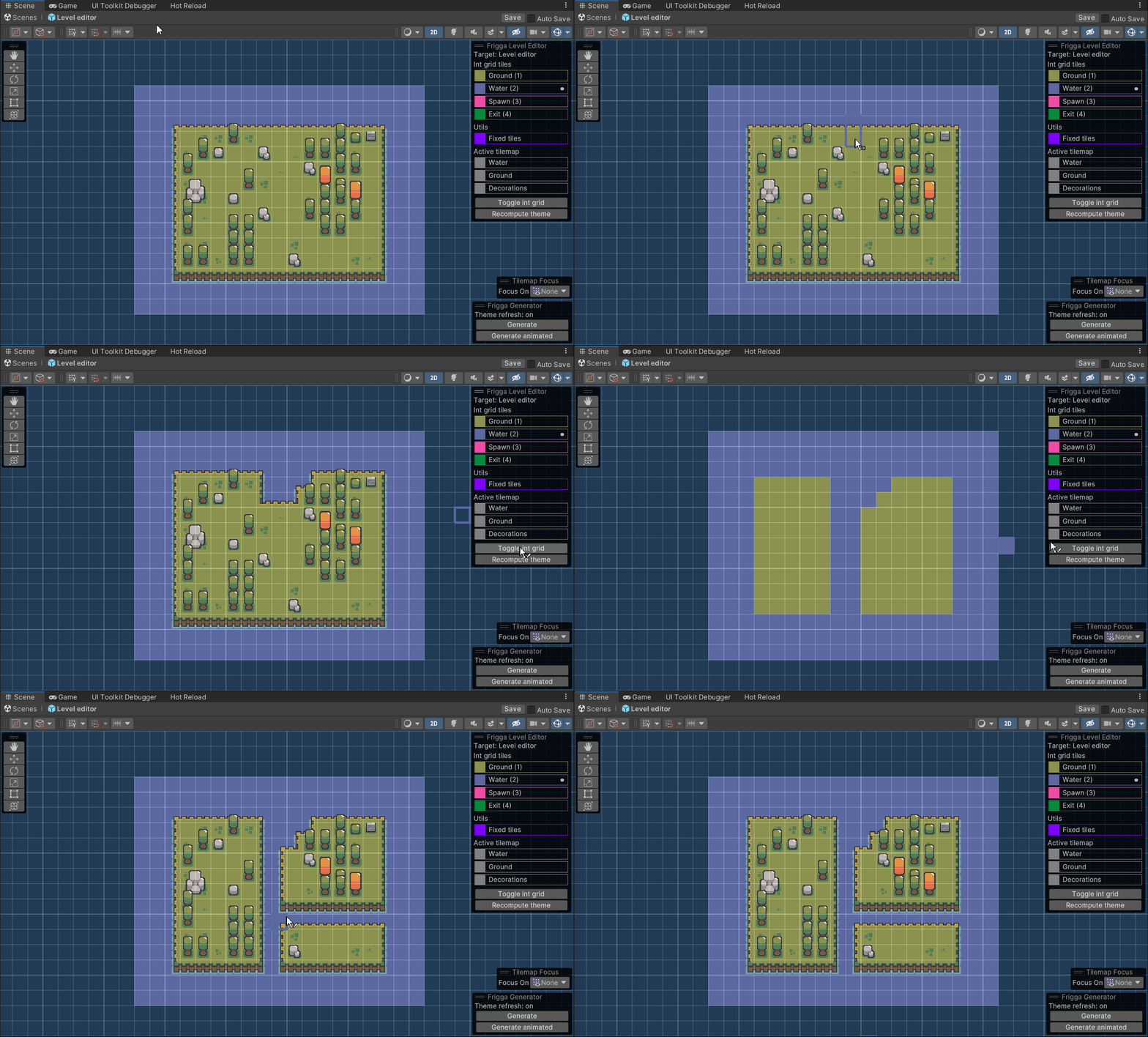
The "Int Grid Tiles" section of the overlay allows you to paint int grid tiles for which the theme will be applied automatically. Click on one of the tiles to start painting with it. Make sure you're in paint mode by pressing "B" or using one of the other shortcuts.
After you paint some tiles, you can use the "Toggle Int Grid" button to see how the int grid looks.
Biomes
The "Biomes" section of the overlay allow you to add or remove biomes in the level. Click on of the biomes to start painting with it. Make sure you're in paint mode by pressing "B" or using one of the other shortcuts. As soon as you click on a biome, an a level overlay with that biome should be enabled so that you can see on which tiles the biome is present.
Fixed tiles
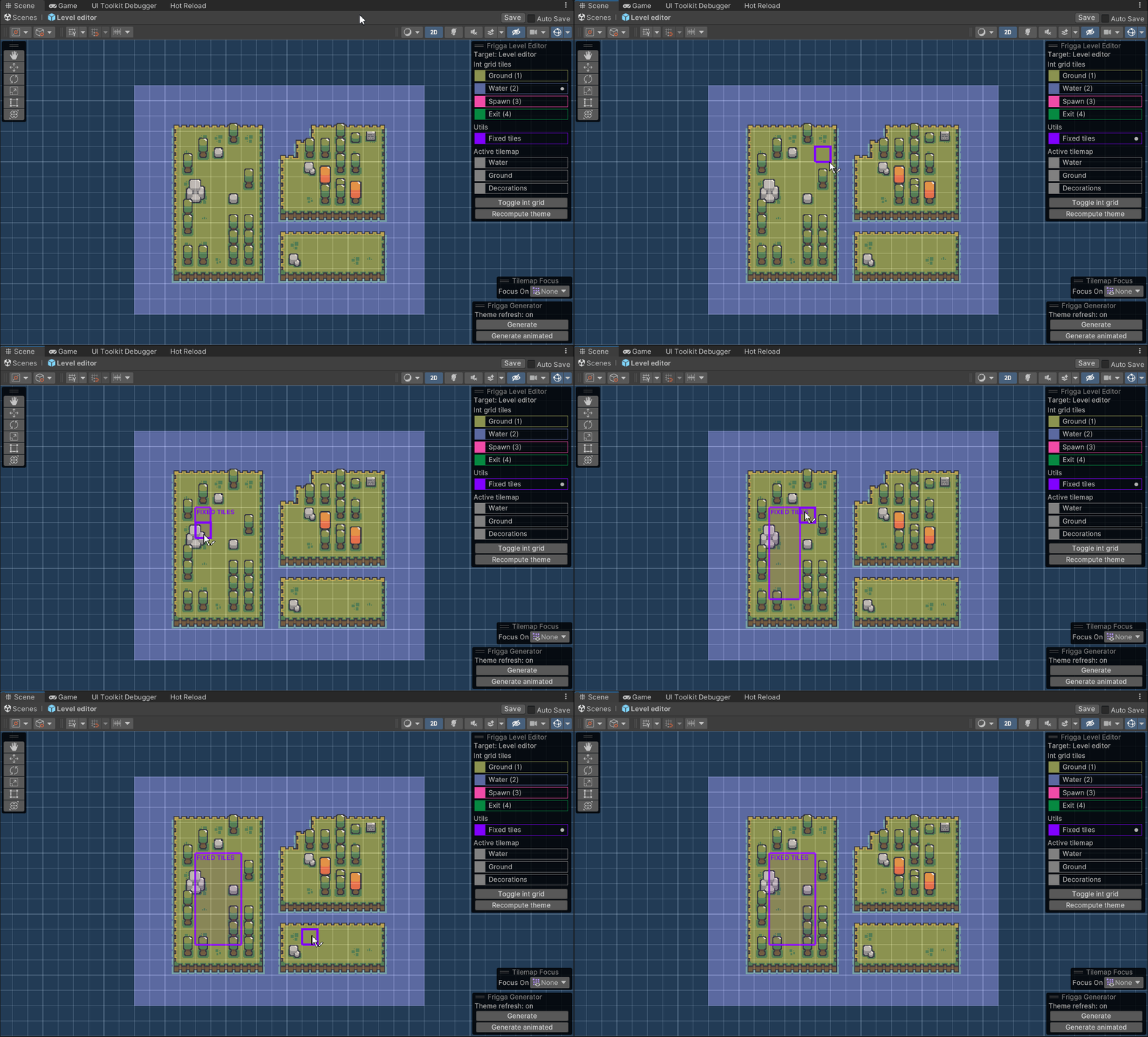
By default, when drawing int grid tiles, there's no way to customize the output because the theme is applied automatically to all tiles in the level. If you want to draw something that is not covered by the theme, you need to mark those tiles as "Fixed Tiles".
First, click on the "Fixed Tiles" button and mark the area that you don't want to be affected by the theme. Again, you can use the usual tile palette shortcuts to control the fixed tiles.
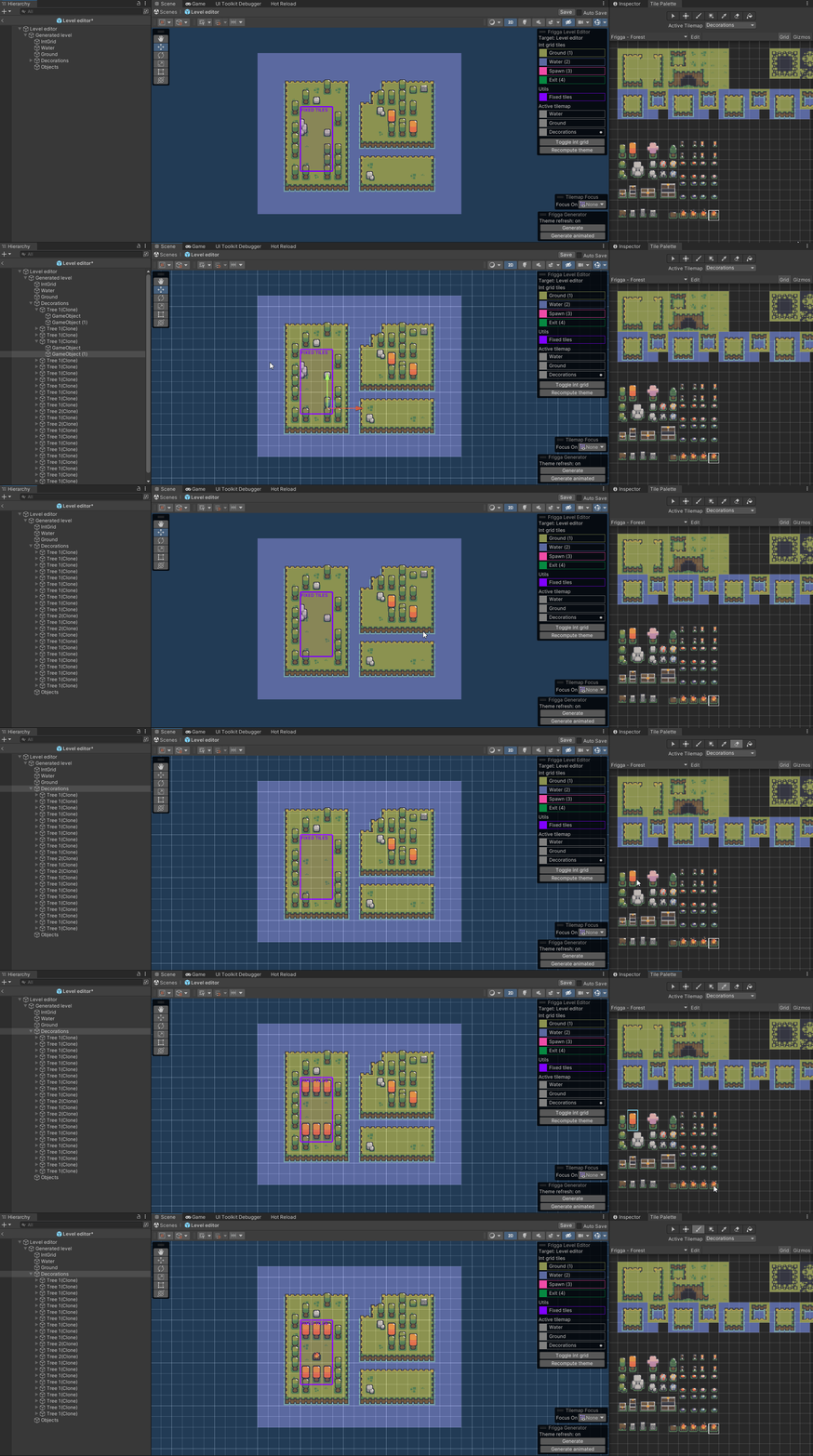
Now you can manually draw tiles onto that section of the level. For this, you can use the "Active Tilemap" section to quickly switch between different tilemaps.
If you select a tilemap through the "Active tilemap" section and start drawing tiles, those tiles should get automatically marked as Fixed tiles so you don't need to mark them manually.
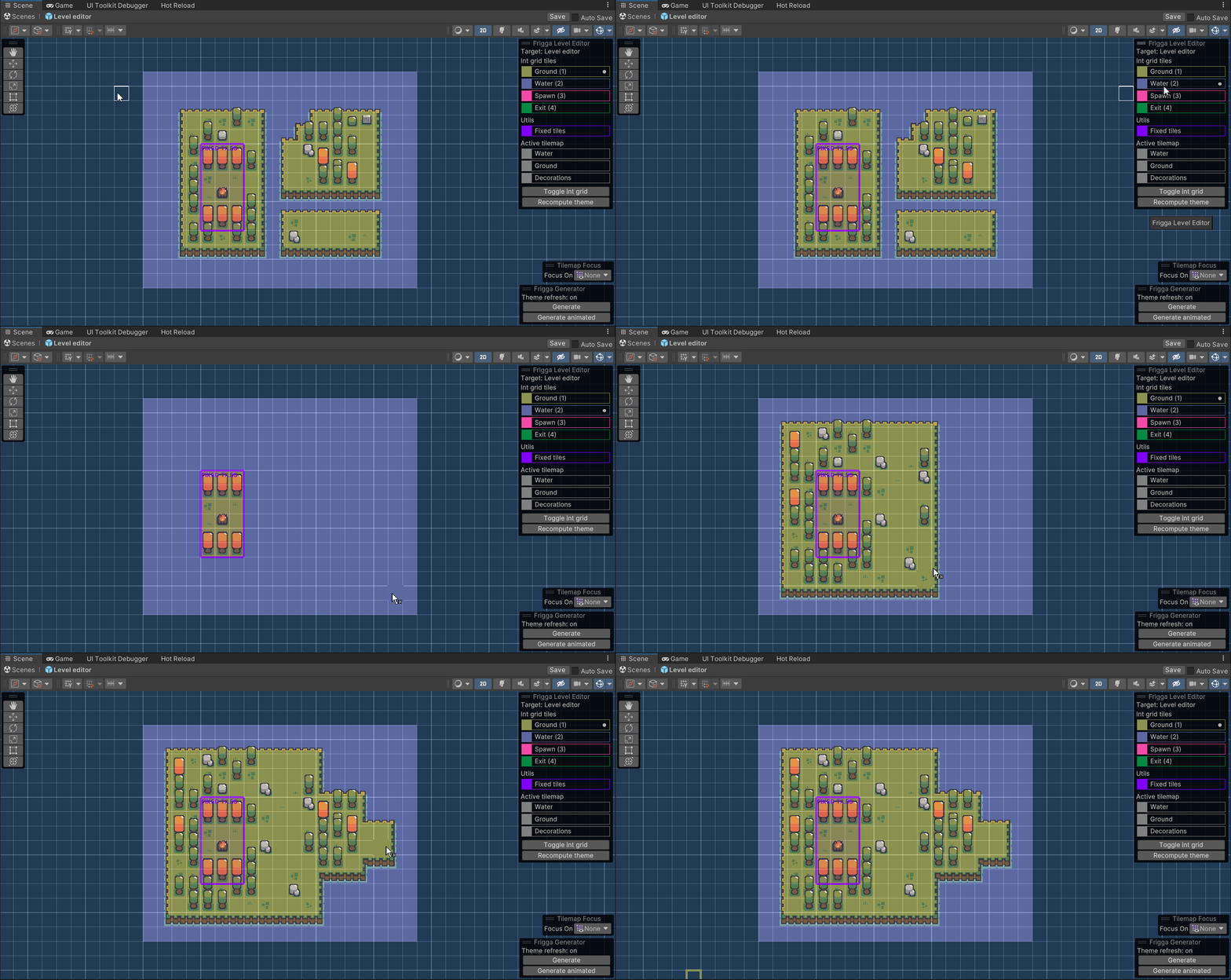
Now, no matter what int grid tiles you paint in the level, the fixed tiles will remain unchanged.
Editing generated levels
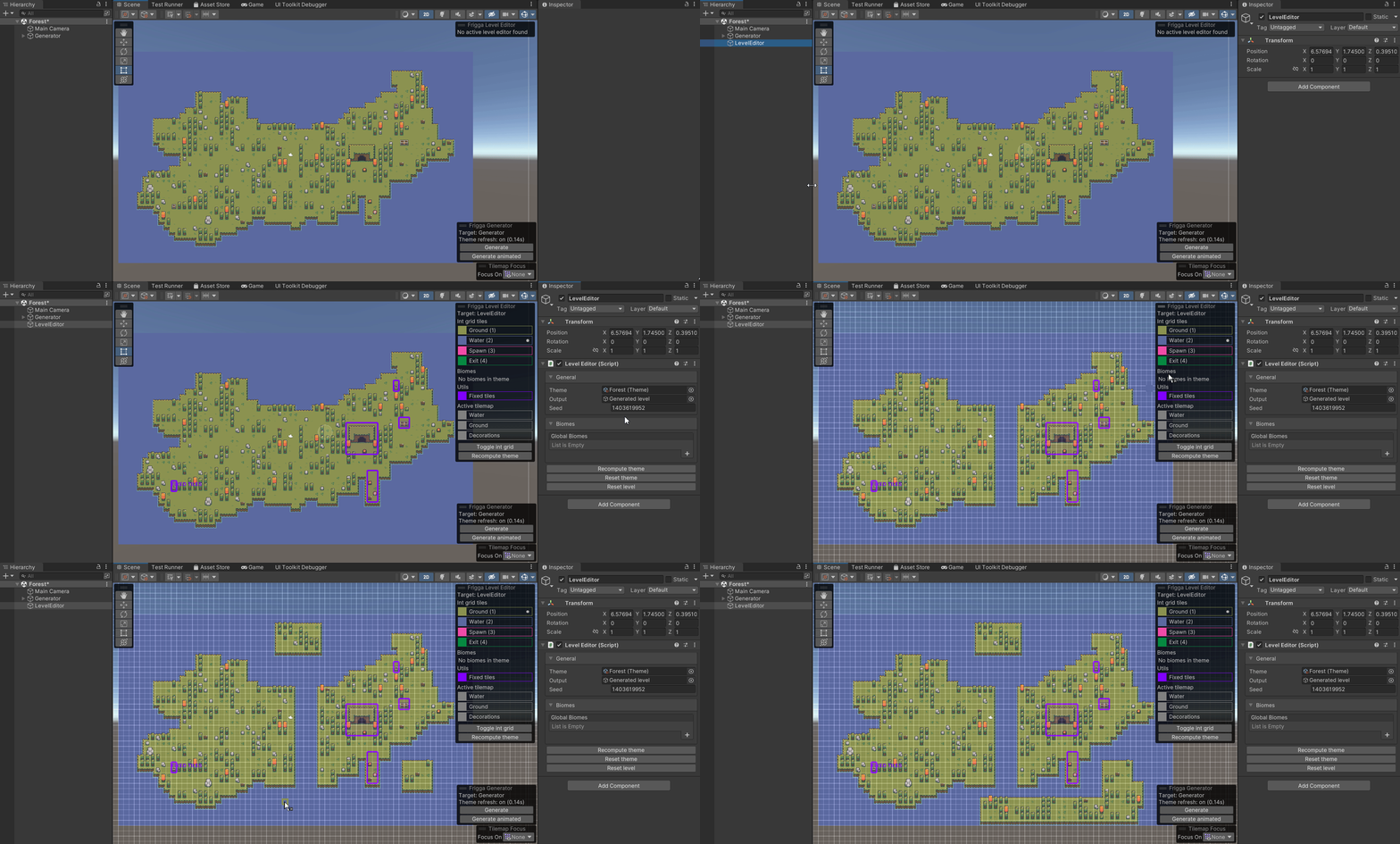
It is also possible to edit a level that was procedurall generated by Frigga. When you are in a scene with the generated level, simply create a new game object and add then Level Editor component to it. Then drag and drop the Generator object onto the Output field of the Level Editor and the Level Editor overlay should connect to the generated level.